Table of Contents
- Matching your throughput objectives to your inventory
- How ER Express manages your inventory
- Step by step: creating a template
- How many templates should you create?
Matching your throughput objectives to your inventory
- Before you start,
- Define your throughput objectives
- Quantify your optimal schedule density. For example, single provider clinics can typically see 4-6 patients per hour.
- Most urgent care practices have predictable peaks and valleys. For example, mornings, lunch times and evenings have the highest visit volume; and often, Mondays, Fridays, and weekends get more visits
- Identify which locations have the highest volume
- Identify how much seasonality you expect
- To load balance patient volume,
- Offer more online slots in the less busy times of the day.
- For example, offer very few or no online slots during the first hour of the day, lunchtime, and the last two hours of the day. This kind of pattern will steer patients toward the less busy times.
- Also, offer more slots at your less busy locations and fewer slots at your busier locations. This kind of pattern will steer patients toward the less busy locations.
How ER Express manages your inventory
- ER Express algorithm suite consists of multiple algorithms that take into account patient volume patterns, including
- The # of patients
- How closely together the patients arrive (e.g., five patients spread out over the course of an hour will have a different impact than five patients all showing up at the same time)
- Throughput patterns (e.g., how many patients are in ready for staff, with staff, etc.)
- Minimum wait
- Minimum spacing (e.g., patients who have two minutes apart will not be seen two minutes apart because we need to allow time to print discharge instructions, enter follow up notes in the chart, and clean the exam room)
- ER Express recommends creating a schedule with more density and then allowing its algorithm to space apart patient time slots
- ER Express will automatically space patient arrival slots. For patient self-scheduling, slots get divided evenly into each hour.
- For example, if you offer two slots per hour, you will have a slot at the top and half past each hour (10:00, 10:30, 11:00, 11:30, etc.)
- If you offer four slots per hour, you will have a slot every 15 minutes (10:00, 10:15, 10:30, 10:45, etc.)
OK, but how should we start?
- If you're not sure exactly how to start, or you're de novo site or a de novo athena implementation, we recommend:
- 12 walk-in slots per hour
- Of those 12 slots,
- no online slots the first hour of the day
- no online slots at lunch
- no online slots the last two hours of the day
- all other hours, two online slots per hour
Step by step: creating a template
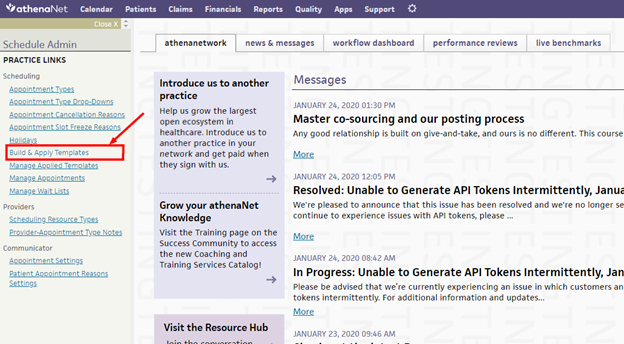
Step 1: From the Schedule Admin > Build & Apply Templates
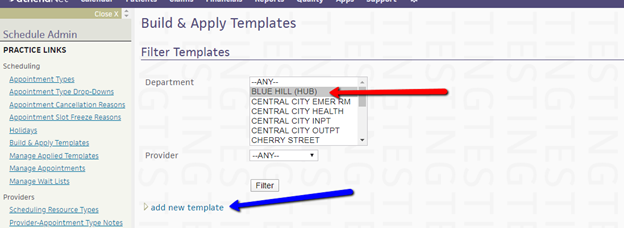
Step 2: Choose the dept > add new template (you do not need to choose a provider – just leave it on the default ‘Any’
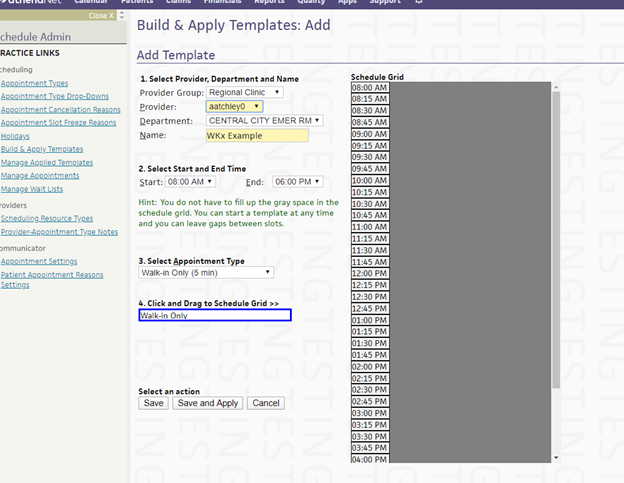
Step 3: Set the group, provider, etc. Also, set the start and end times. You do not necessarily need to create a different schedule for weekends even if your clinic has different weekend hours. However, you should set your hours to the earliest and latest it accepts patients.
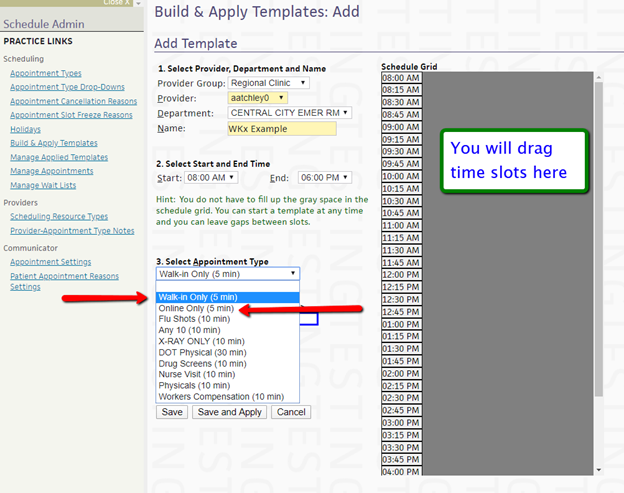
Step 4: Create your schedule by dragging the appointment types into the calendar.
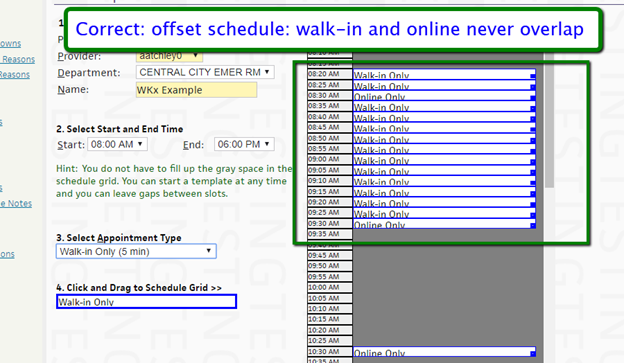
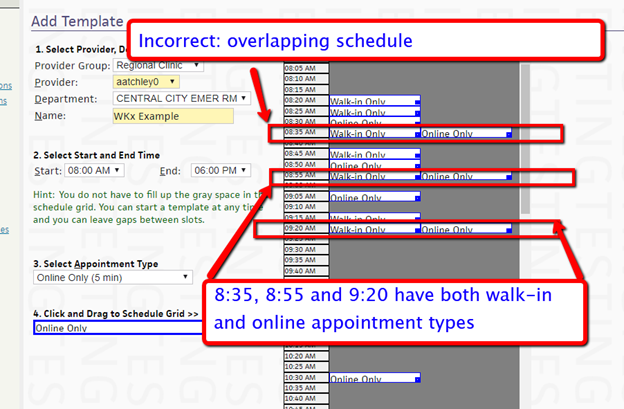
Step 5: Make sure you have an "offset" that staggers online and walk-in slots without ANY overlap
Correct: offset
Incorrect: overlap
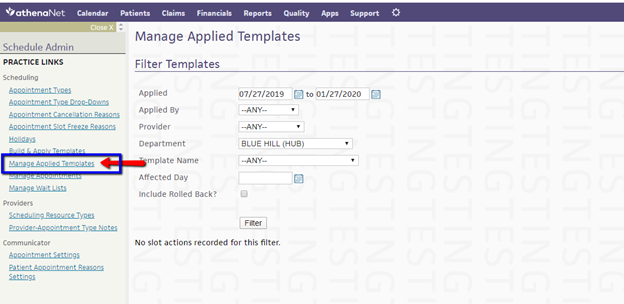
Step 6: To apply the template, first find an existing template by clicking on Manage Applied Templates
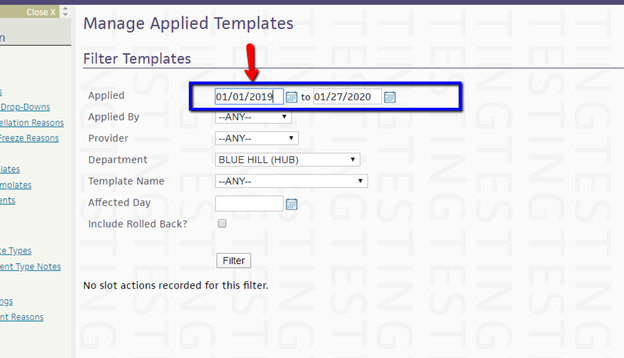
Step 7: There is not a great way to find all templates - the best way is to set the filter for anything you created in the last two years. You won’t see any templates until set the filter parameters and then click on the ‘Filter’ button
Step 8: Here are the available templates. Athena does not have a good way to see if they overlap
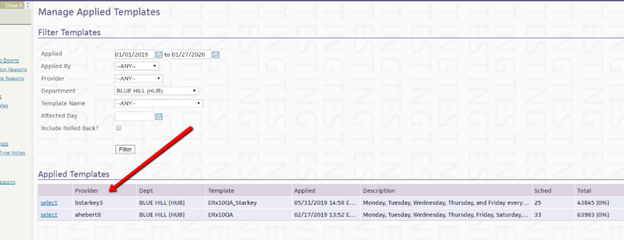
Step 9: Click 'Select' and then examine the calendar view - look for the days shaded green
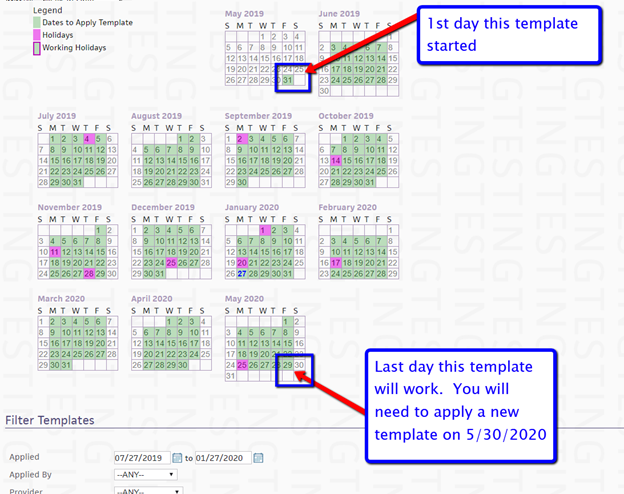
How many templates should you create?
- In short, as few as possible
- ER Express can accommodate a unique template for each department
- However, for each unique template, the practice will need to keep track of making edits and applying new templates when the existing template expires - athena does NOT have a way to automatically track expired templates or get a reminder if a template is about to expire - the practice just has to remember to do it