Table of Contents
- Appointment types - simple vs. complex
- Appointment types vs. appointment reasons
- "Default" appointment types vs. "actual" appointment types
- Offset schedule
- Applying templates
Appointment types - simple vs. complex
- Appointment types represent the reason for the patient's visit. Athena allows for a high level of flexibility and configuration. Some practices have a handful of types (New office visit, returning office visit, Physical, Employer Services) and others have dozens, such as variations for appointment duration (new office visit 5 min, new office visit 10 min, new office visit 15)
- Before you start, define the rules for how to determine the correct appointment type. This process is almost always more complex than one thinks!
Example 1:

Example 2:

"Default" appointment types vs. "actual" appointment types
- ER Express uses a two-part workflow to get patients onto the athena schedule
- First, patients fill out the reservation workflow, which immediately gets them "in the queue," i.e., on to the schedule.
- ER Express will place patients in the queue using a "default" appointment type, typically "walk-in" and "online" for walk-in and self-scheduled patients, respectively. This appointment type name can be whatever a practice deems appropriate.
- Then, patients will fill go through the intake workflow. This second workflow can be intricate and detailed depending on the complexity of how they want to categorize appointments and how many different appointment types they have. ER Express' workflow contains deep conditional logic that will determine the "actual" appointment type.
- Why not just ask patients why they are here, i.e., let them choose from a list of appointment types? In our experience, patients have very low accuracy in choosing their appointment type. Something as simple as asking, "have you been here before?" actually contains a lot of nuance and complexity. What if the patient has been to the practice, but not this particular location? What if the patient has been here before, but had a different name? What if the patient is a minor, and the accompanying adult has been here but the minor has not?
To create Appointments
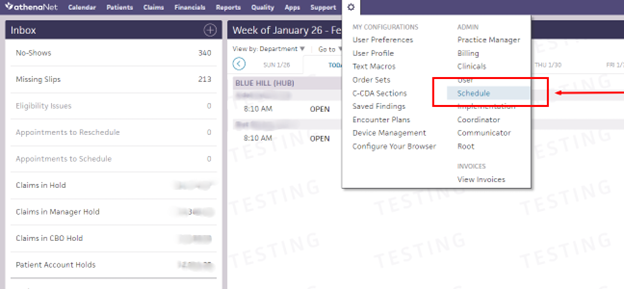
Step 1: Go to Settings > Schedule
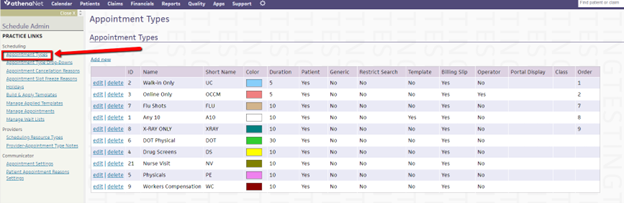
Step 2: From the Schedule Admin, click on ‘Appointment Types’ (the first choice on the left)
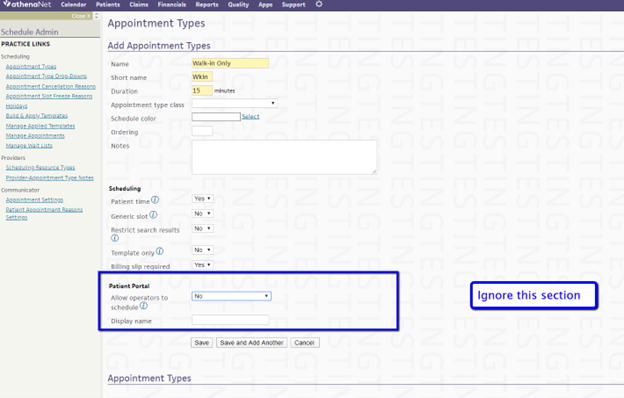
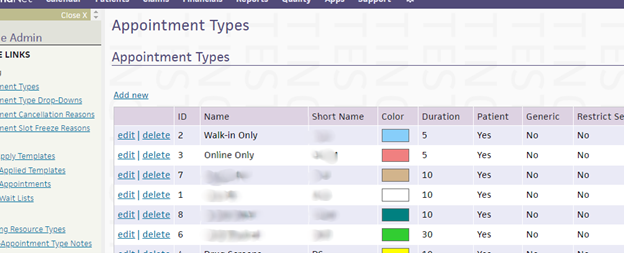
Step 3: Create an appointment type 'Walk-in Only'
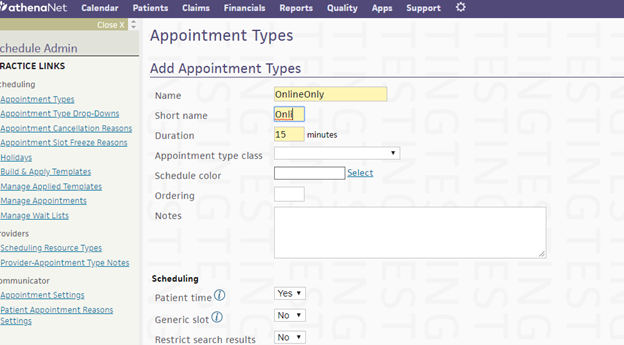
Step 4: And one for 'online-only'
Step 5: Now you will see them in your appointment type list
Now you are ready to create a schedule template