Overview
We offer a software development kit ("SDK") to make it easier for our customers to implement and publish our booking widget(s) on their website.
The SDK greatly simplifies the implementation for the hospital's digital agency/marketing department and gives more flexible options for how to consume and display via our APIs.
What our SDK Provides
- The first-available-time
- The patient count (i.e., # of patients in the queue)
- The booking form
Options
Each customer can decide which parts of the API to use, a la carte.
For example, you can publish
- the first-available-time + the booking form
- the patient count + the booking form
- just the patient count
- just the booking form
More on the Booking Form
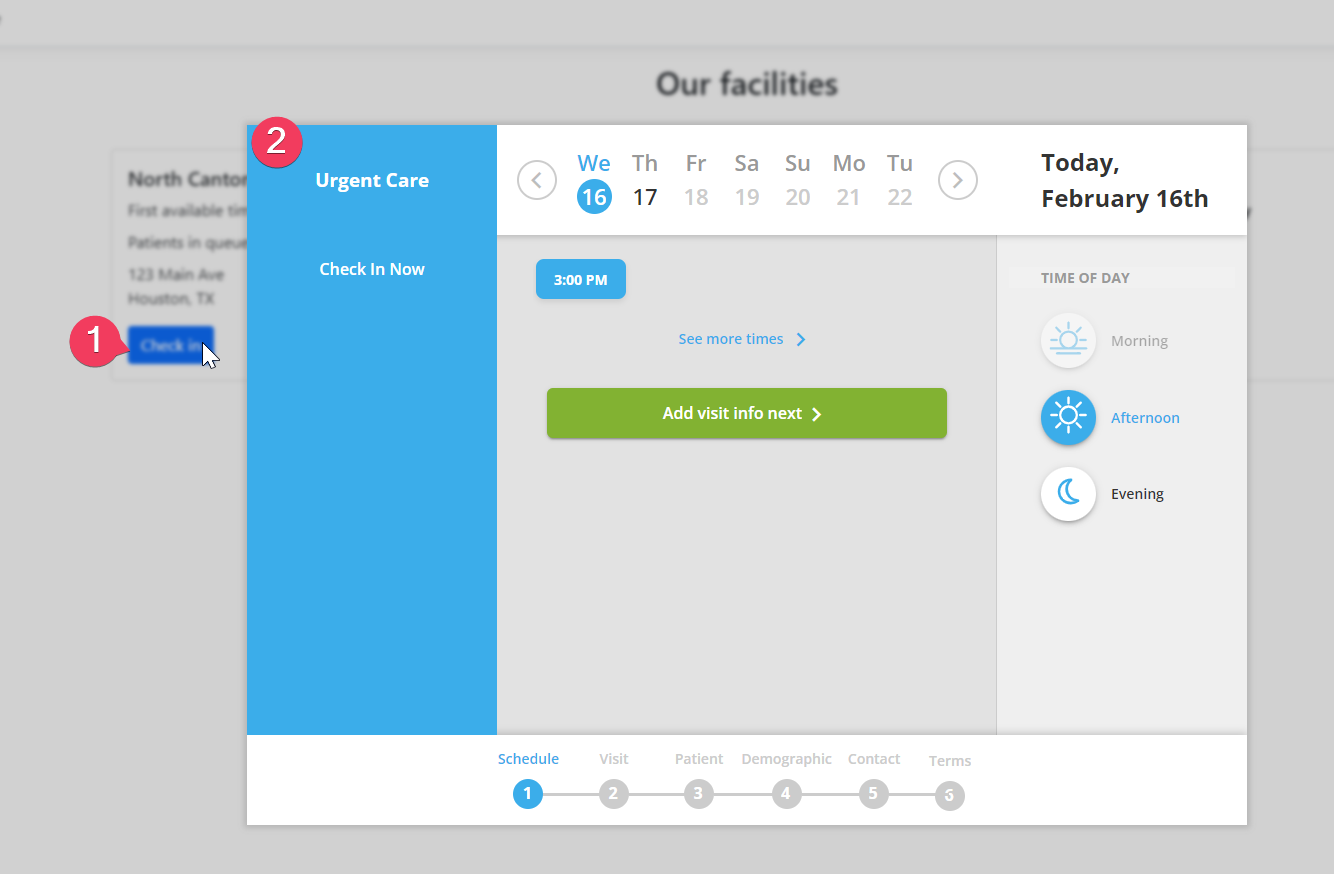
We recommend publishing our booking form as a modal. Based on extensive testing, it delivers the best user experience on mobile devices for patients/pet owners.
It also significantly improves the scalability of our solution because the hospital does not have to create a dedicated landing page for each campus' reservation form. The modal launches the form directly from the book-now button.
Customizing the Style/Look/Feel/Branding
You have complete control over the look/feel of how you publish the first-available-time, patient count, and call to action button.
We do not yet offer the ability to configure the style of the booking form itself, but we do have this feature on our roadmap for late 2022.
Implementation
What ER Express Provides
- ER Express will provide a single line of code that calls our JavaScript file (which we host in an Azure-based Content Delivery Network), for example, https://erxsdk.azureedge.net/scripts/simple.js
- A spreadsheet with the facilityID (i.e., location identifier)
- The syntax for the HTML code that publishes each attribute of the SDK
The SDK data attributes
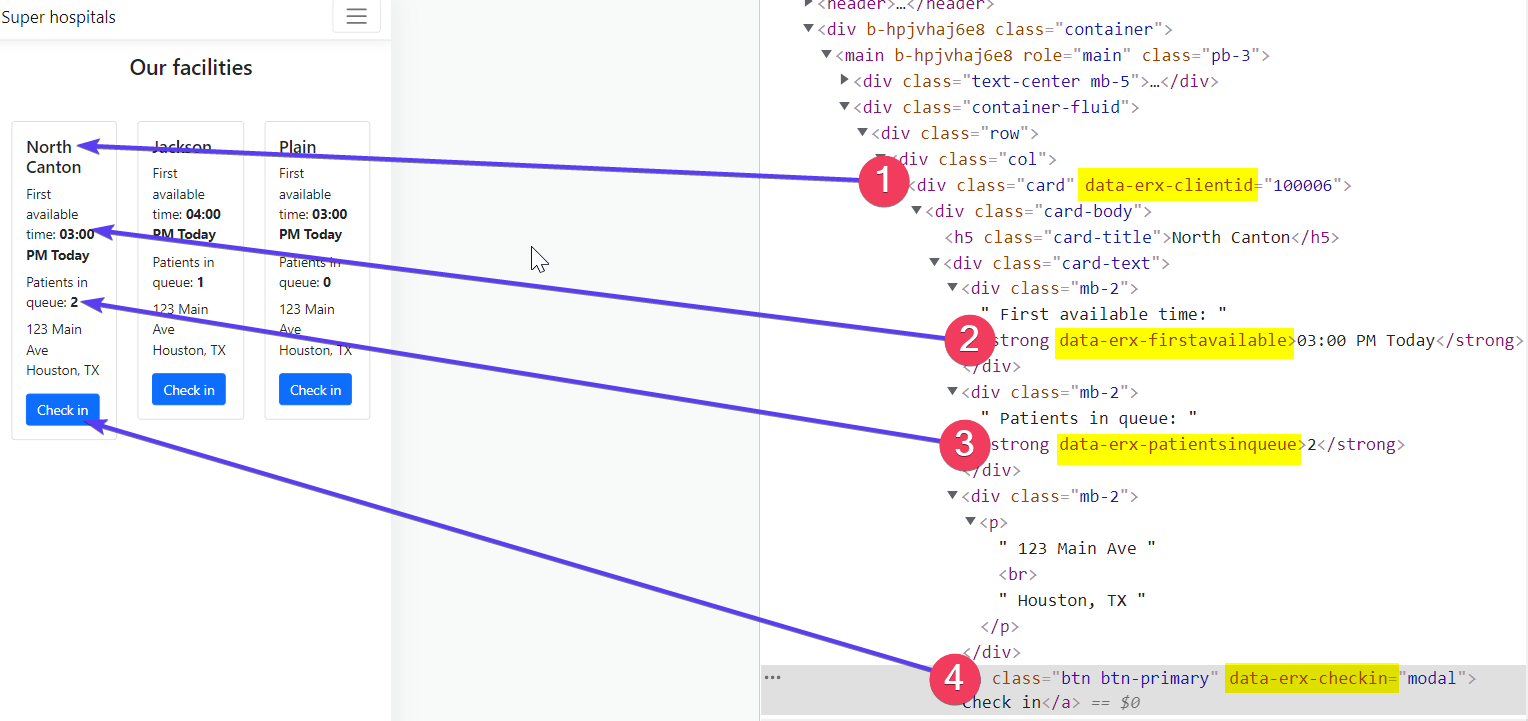
- FacilityID: data-erx-clientid="100006"
- First-available-time: data-erx-firstavailable
- Patient count: data-erx-patientsinqueue
- Booking form modal: data-erx-checkin="modal" (which gets launched from a call to action button)
What the Hospital/Digital Agency Needs to Do
- Publish the JavaScript file in the header of each page where you want to publish any of the attributes. You will do this once per page. For example, if you have two landing pages, one for your urgent care clinics and one for your emergency departments (assuming they both use ER Express), such as www.milfordmedical.com/urgent-care and www.milfordmedical.com/emergency-care, you would add the JavaScript file twice (one on each page).
- Add the HTML code that publishes each attribute you want to use. You will need to do this once for EACH location. Using the example of Milford Medical,
- Let's say you have five urgent care clinics. You will publish the HTML code five times - once for each of the five clinics on www.milfordmedical.com/urgent-care.
- Let's say you have three emergency departments. you will publish the HTML code three times - once for each of the three EDs on www.milfordmedical.com/emergency-care.
- Create a call to action button that will launch the booking form.
- Apply your preferred styling (e.g., color of the call to action button).
Best Practices
- The data-erx-clientID attribute must be the highest level attribute for each location because it determines the values for the subsequent data attributes. For example, data-erx-clientid="100006" will return the first-available time, patient count, and booking form for the hospital with the ER Express facility ID 100006.
- We will provide a spreadsheet of facility IDs. We recommend having your content management system dynamically serve up the correct facilityID, particulary if you have a page where patients can search your website based on ZIP code or geolocation.
Demo Implementation
Example page
Click here to view a very simple sample demo: http://erxlbsdk.azurewebsites.net/
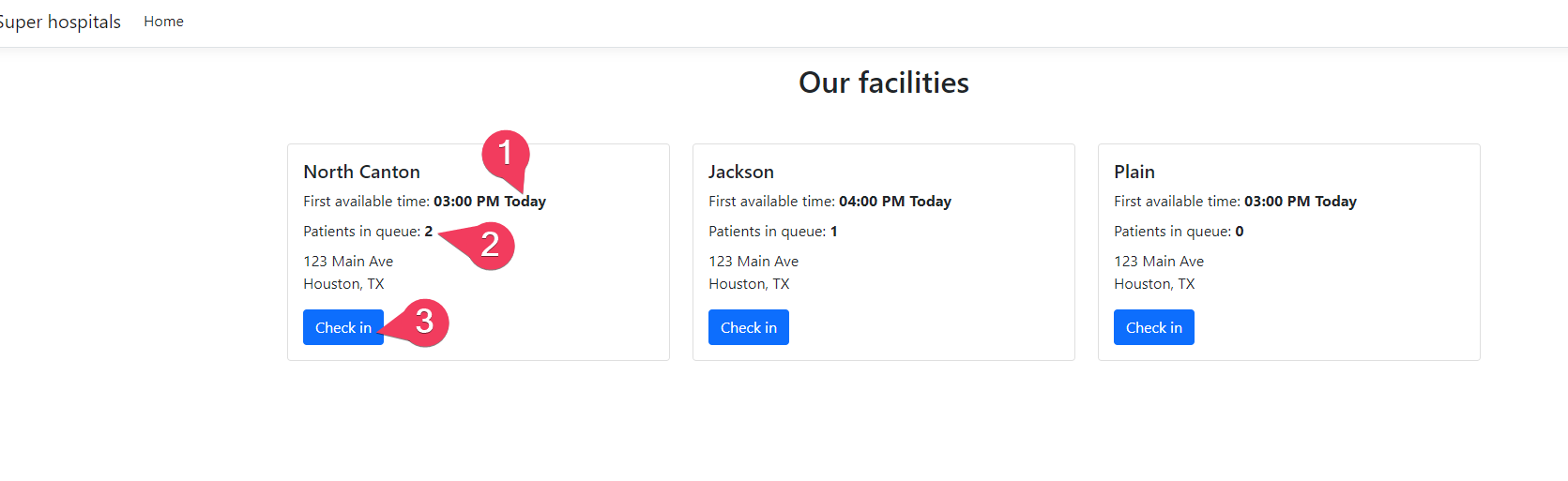
Screenshot of each attribute
(1) first available time
(2) patient count
(3) call to action button that launches the booking form
Booking form modal
(1) call to action button
(2) booking form
Data attributes
(1) Location ID
(2) First-available-time
(3) Patients-in-queue
(4) Booking form